Getting started with DMS
You can start working with DMS just from the JewelSuite application that you are already using.
To connect to the DMS server the first time:
- Open JewelSuite Geomechanics and start a new solution.
- Select a solution CRS and Display Units to continue working with the solution, see Before you start - geodetic rules. You might have to set the CRS again once you are connected.
- Once the workspace appears, save your solution to DMS using Save As > Save to DMS (under home > Solution). The 'Connect to DMS' form automatically opens. See Connecting to DMS.
- Once you are connected to the DMS server, the Save to DMS form automatically opens.
- At the base of the Save to DMS form, type the name of your solution. Later you can use the Save to DMS + Message option to save your solution and notify the subscribed users via email the changes that you make in the solution.
- Click Save to save the solution and close the form. All users with access to your folder can, depending on their administrative rights, save a solution to the folder, edit it, or just open it with reading rights. Go to home > DMS > Folders and Solutions.
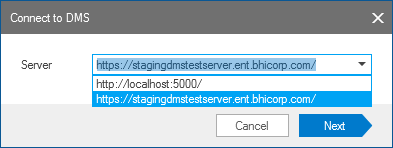
Connecting to the DMS server click to enlarge
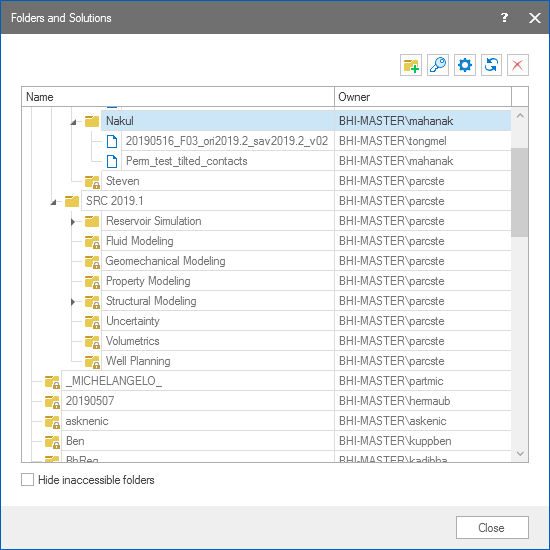
Connecting to the DMS server click to enlarge